




What is a password manager?
A password manager is software that stores your login credentials in a single secure place. Instead of remembering dozens of passwords — or, more realistically, reusing the same one everywhere — you remember one strong master password. The manager handles everything else.
The idea has been around for decades, but it became genuinely mainstream as online accounts multiplied. Today, the average person has well over 100 online accounts. Expecting anyone to memorize a unique, complex password for each one is not realistic. Password managers exist precisely to close that gap. They come in several forms: dedicated apps from independent companies, built-in tools inside browsers like Chrome or Safari, and increasingly, systems built around passkeys.
How does a password manager work?
Understanding the mechanics makes it easier to trust the tool.
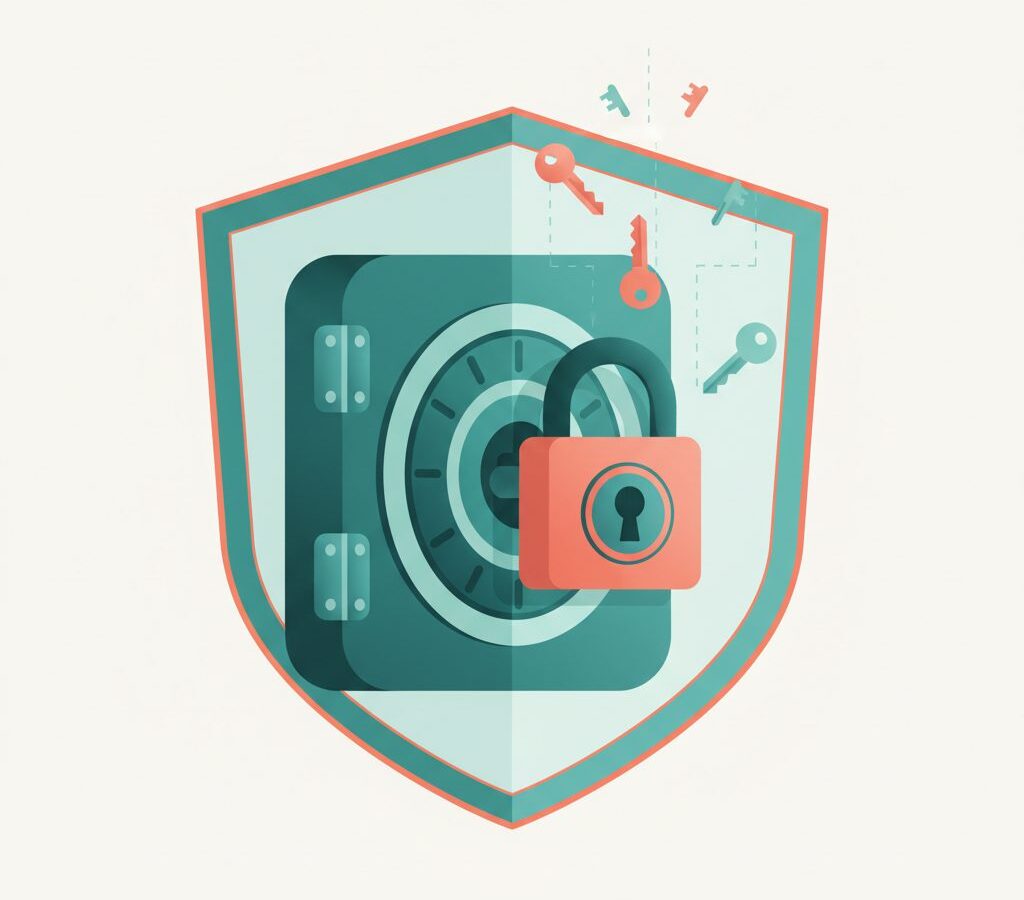
The vault. Your passwords are stored in a local or cloud-hosted database called a vault. This is not a plain text file — every entry is encrypted before it leaves your device, so even if someone obtained the file, they would see unreadable ciphertext.
The master password. Only you know the master password. The manager uses it to derive an encryption key that unlocks the vault. The master password itself is never stored or transmitted. This is why forgetting your master password is serious: most providers genuinely cannot recover it for you.
Encryption. Reputable managers use strong encryption standards — typically AES-256, the same specification used to protect classified government information. The encryption happens on your device before any data syncs to a server. This model is called zero-knowledge: the service provider holds your vault but cannot read it.
Autofill. When you visit a login page, the manager recognises the site’s domain, retrieves the matching credentials, and fills them in. This also protects against phishing — if you land on a lookalike site with a slightly different domain, the manager won’t autofill, which is a quiet but effective warning.
Password generator. Most managers include a generator that creates random, complex passwords to whatever specification you set. Generating a unique password per site takes a few seconds and removes any temptation to reuse something memorable.
Sync. Cloud-based managers sync your vault across devices over an encrypted connection. Because of the zero-knowledge model, the sync server only ever sees the encrypted blob, not your actual passwords.
Do you actually need one?
Short answer: yes, for most people. The most common cause of account compromise is not sophisticated hacking — it’s credential stuffing. Attackers take username and password combinations leaked from one breach and try them across other services automatically. If you use the same password on your email as you did on a forum that leaked years ago, your email is exposed. A password manager stops this pattern cold because every password it generates is unique.
The US Cybersecurity and Infrastructure Security Agency (CISA) lists using a password manager among its core recommendations. The National Institute of Standards and Technology (NIST) has updated its guidance to discourage frequent forced password changes in favour of longer, unique passwords — exactly what a manager makes practical. There is a reasonable counter-argument: putting all your credentials in one place creates a single point of failure. That is true, but the alternative — weak or reused passwords across hundreds of sites — is statistically far riskier, and the concentrated risk of a vault is manageable with good practices. For more practical tech and security guides, browse the rest of the site.
Are password managers safe? (and the risks)
No security tool eliminates risk entirely. It is worth knowing where the real risks sit. The master password is the crown jewel — if an attacker gets it and can access your vault, they potentially have everything, which is why it should be long and unique. A passphrase of four or five random words resists guessing far better than a short complex string. Two-factor authentication on the vault itself means an attacker with your master password still can’t get in without your second factor — this single step substantially raises the bar. Provider breaches have happened, but because of zero-knowledge encryption, obtaining the vault file does not equal obtaining the passwords; the attacker would still need to crack your master password by brute force. Device compromise — malware that captures keystrokes — is a general device-security problem a manager can’t fix, so keep your OS and apps updated. And export your vault periodically and store it securely, in case a service has an outage or shuts down.
Types: browser built-in vs dedicated apps vs passkeys
Browser built-in managers (Chrome, Safari, Firefox, Edge) are convenient and free, and integrate tightly with the browser. The limitations: they typically work only within that browser, sync is tied to the browser’s ecosystem, and they offer fewer features. For someone whose entire online life runs through one browser on two devices, they are a reasonable starting point.
Dedicated password manager apps work across all browsers and platforms, offer richer features, and are built by teams focused entirely on credential security. Many offer free tiers sufficient for personal use, and tend to have more transparent security audits. For anyone with accounts across multiple browsers or devices, a dedicated app is the more practical choice.
Passkeys are a newer standard from the FIDO Alliance. Instead of a password, a passkey uses a cryptographic key pair: the private key never leaves your device, and authentication happens locally, which reduces phishing risk significantly. Many password managers now store and sync passkeys alongside traditional passwords. Adoption is growing but not universal, so passkeys and password managers are complementary for now rather than one replacing the other.
How to get started
The barrier is lower than most people expect.
- Choose a manager. Your browser’s built-in tool works for zero setup; for something cross-platform, research dedicated options that publish independent security audits and have a clear zero-knowledge policy.
- Create a strong master password. Pick a passphrase of random, unrelated words. Write it on paper and store it somewhere physically secure — nowhere else.
- Import what you already have. Most managers can import credentials from your browser or another manager, seeding your vault immediately.
- Add new accounts as you go. You don’t need to audit every old password on day one. When you log into a site and your manager flags a weak or reused password, update it then.
- Enable two-factor authentication on the vault. Use an authenticator app rather than SMS where possible. This is the most important step after a strong master password.
- Review periodically. Most managers show a password-health overview — duplicates, weak passwords, accounts in known breaches. Running through it every few months keeps things clean.
The bottom line
Password reuse is a real and well-documented risk. Strong, unique passwords per account is the standard that security agencies, researchers, and practitioners consistently recommend, and a password manager is the practical tool that makes that standard achievable for ordinary people. The risks of using one are real but manageable — strong master password, two-factor authentication, device hygiene. The risks of not using one, at the scale most people operate, are harder to manage. You don’t need to pick the perfect manager; you need to start. A browser built-in tool beats nothing, a dedicated app beats a browser tool for most people, and adding a second factor beats both on its own. Start where you are, improve incrementally, and the habit becomes automatic quickly. For more on everyday tech and security, browse the rest of abcyapi.